What Jubal is, in one minute
Jubal is a legal AI that works on your matters the way an associate would: it reads the whole file, drafts real Word documents in your firm's style, and cites what it used to the page. It runs as a desktop app (each attorney runs their own AI on their own machine) over matters your whole firm shares; a browser version at jubal.law lets anyone on the team review the same matters without installing anything.
Two places to work:
- A matter — the case workspace. Documents, threads with Jubal, work product, people, deadlines. Shared with your team.
- The Quick Desk — your private quick-work surface. Letters, memos, email drafts, summaries with no client and no matter. Private to you; a session can be moved into a matter later if it becomes real case work.
Getting around
The left sidebar has six destinations: Today, Quick Desk, Clients, Matters, Team, Tools, plus your account menu (Settings, sign out) at the bottom. Click blank sidebar space to collapse it to an icon rail; click again to expand.
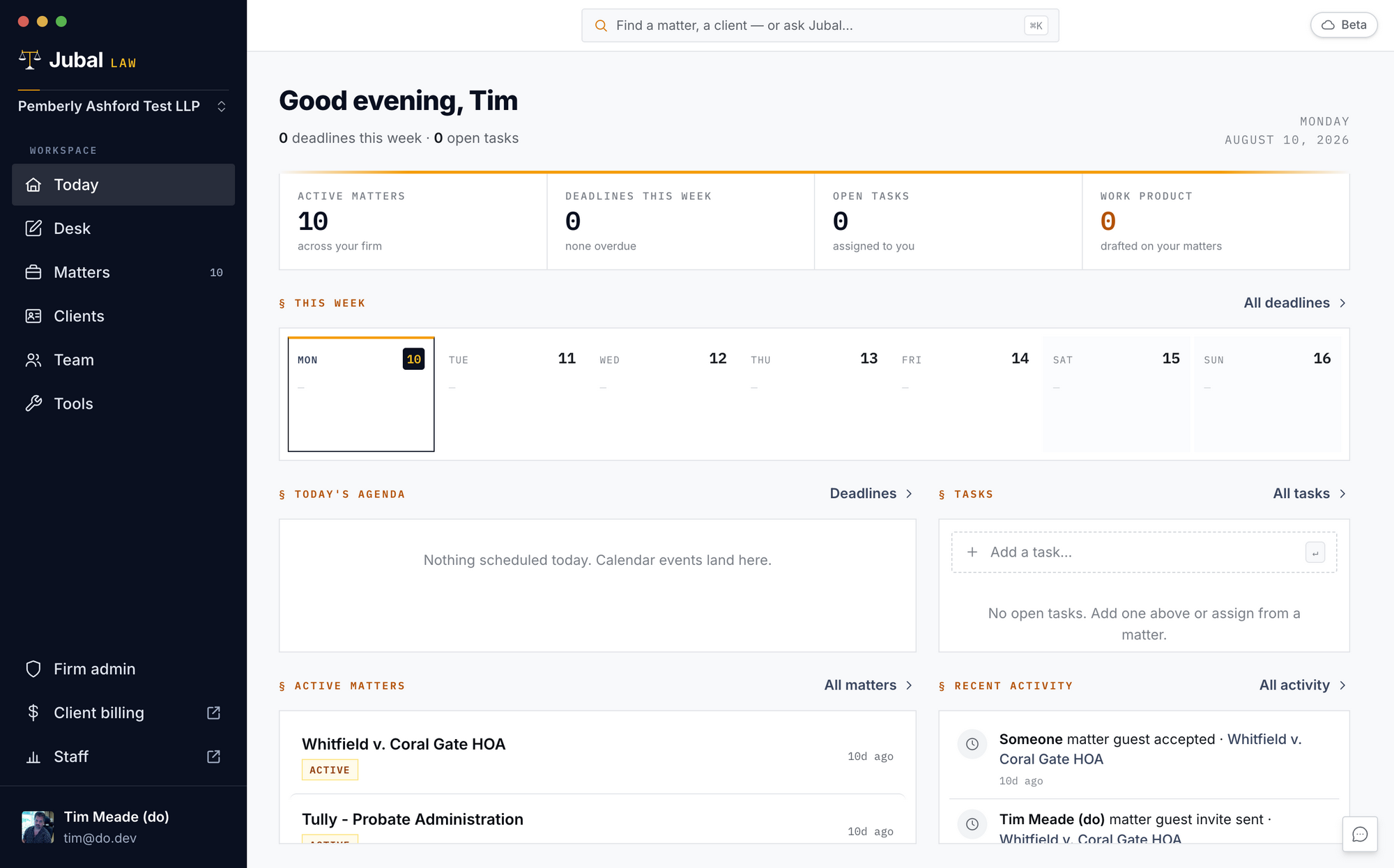
- Today — your dashboard: deadlines this week, overdue items, open tasks, recent activity and work product across your matters.
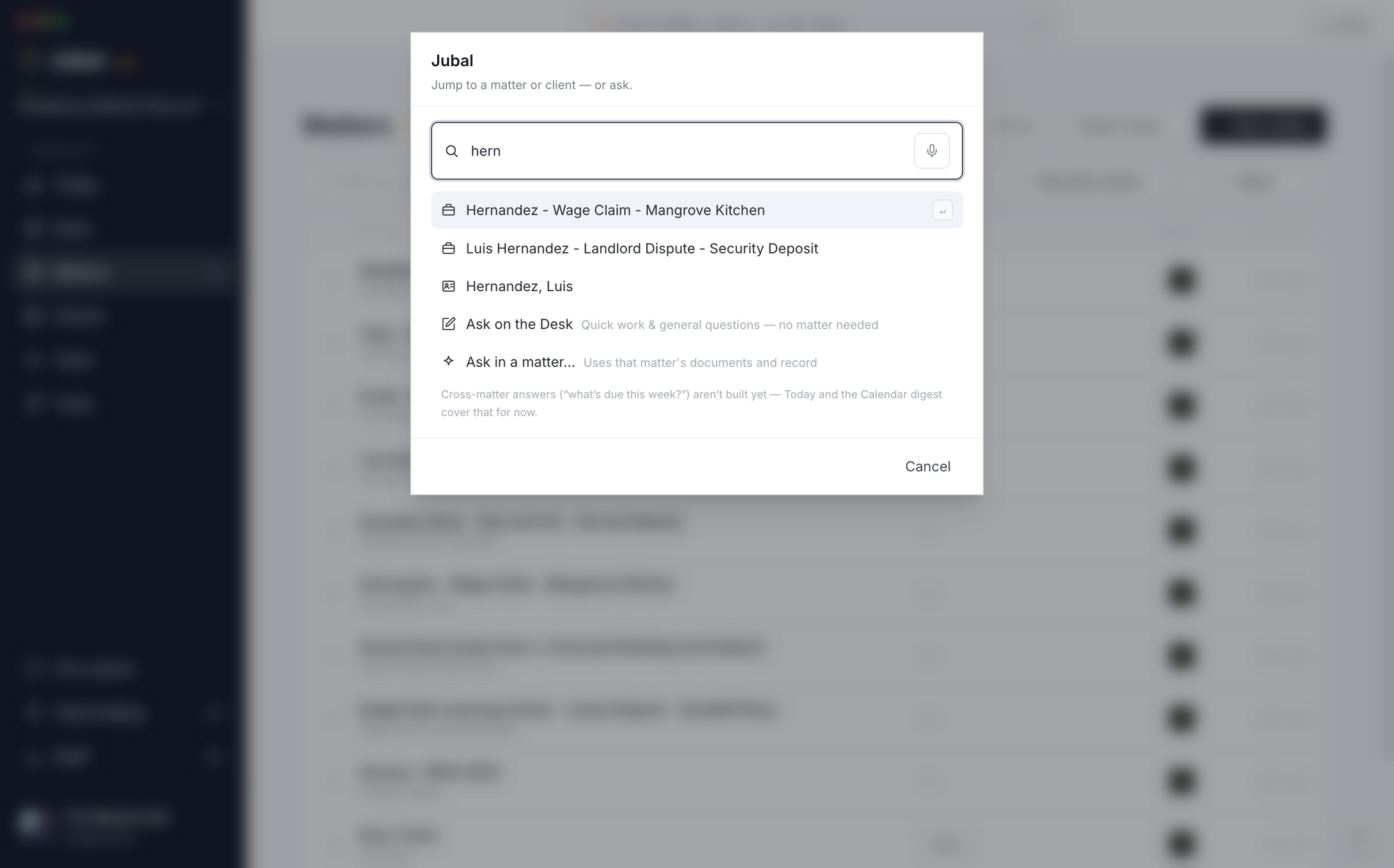
- ⌘K (Ctrl+K on Windows) — the command palette from anywhere: type a matter or client name to jump to it, or type a question and choose where it runs (the Quick Desk for quick/general work, or a matter thread).
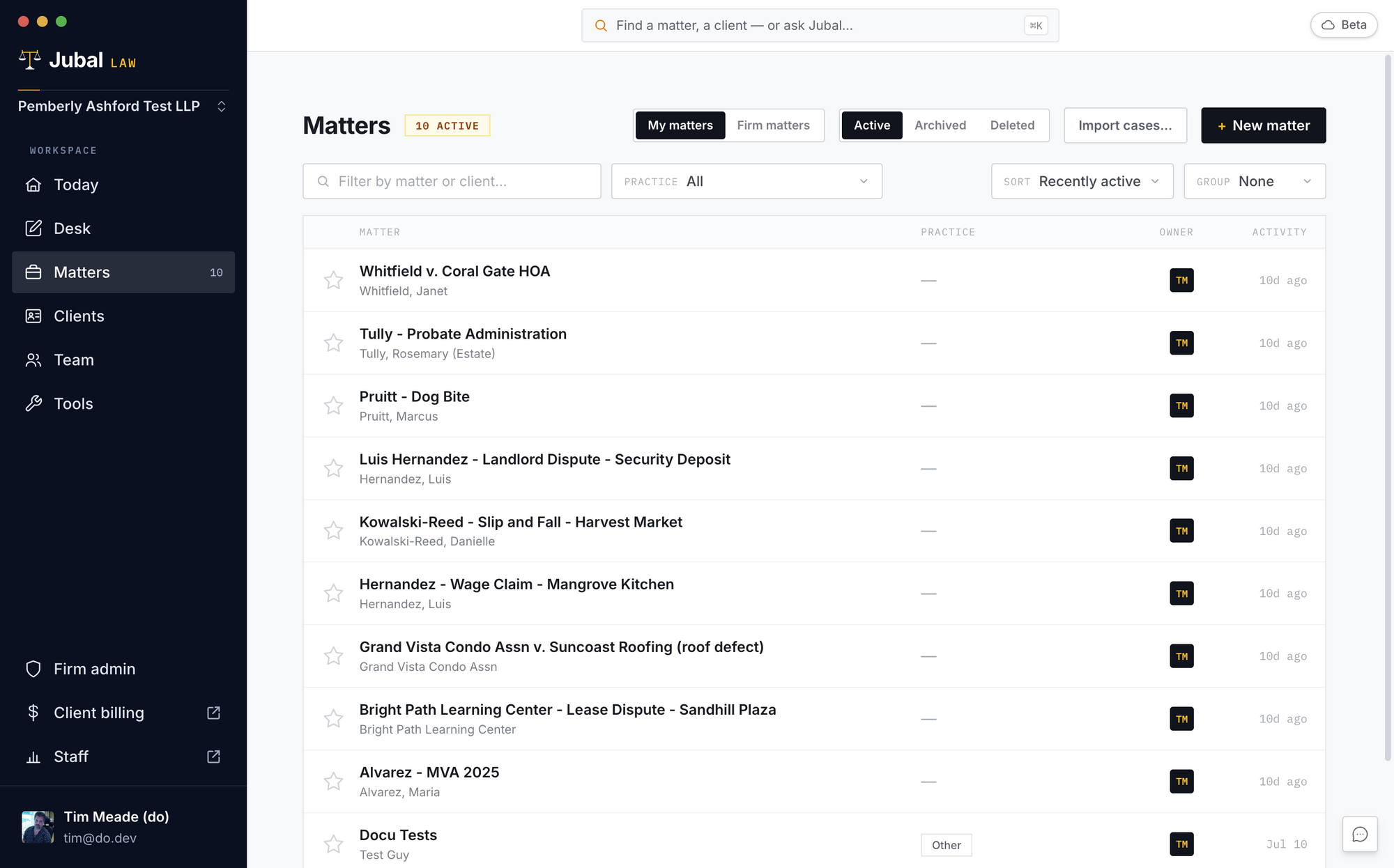
- Inside a matter, eight tabs under the matter name are always there: Overview, Files, Review, Drafts, Chats, Details, Related, Settings. Review's count turns gold while something waits on you. People, Tasks, Calendar and Activity live under Details.
- Text size: Settings → Appearance, or ⌘+ / ⌘− anywhere.
Getting started
Sign in
Open the desktop app and click Sign in — authentication happens in your browser and returns to the app by itself. The same account works at jubal.law in a browser.
Set up a new firm
A guided sign-up walks the founding user through it: firm name and profile, accepting the Customer Terms (which carry Jubal's data commitments), team invites, and a hand-off into the desktop app. Minutes, not an IT project.
Join an existing firm
Two paths:
- Invited: accept the invite that was emailed to you, then sign in with that same email address. The invite is waiting when you sign in.
- Work-email match: if your email domain matches a firm already on Jubal, sign-up offers a one-click request to join. You see nothing of the firm until an owner approves the request (Firm → People).
Personal setup interview (recommended first step)
Settings → Profile → run the personal setup. Jubal interviews you for about ten minutes — structured questions, answers saved as you go — and fills your contact card (signature name, title, phone, mailing address) and your working profile. This is what makes letters come out signature-ready and drafts sound like you. Re-run it anytime from the same place.
Firm admins can also run the firm interview (Settings → Firm), which writes the firm playbook — the visible document describing how the firm practices. Jubal follows it when drafting, and proposes amendments when the firm's actual decisions drift from the written standard (a lawyer approves every change).
Back to the index ↑Matters
Create a matter
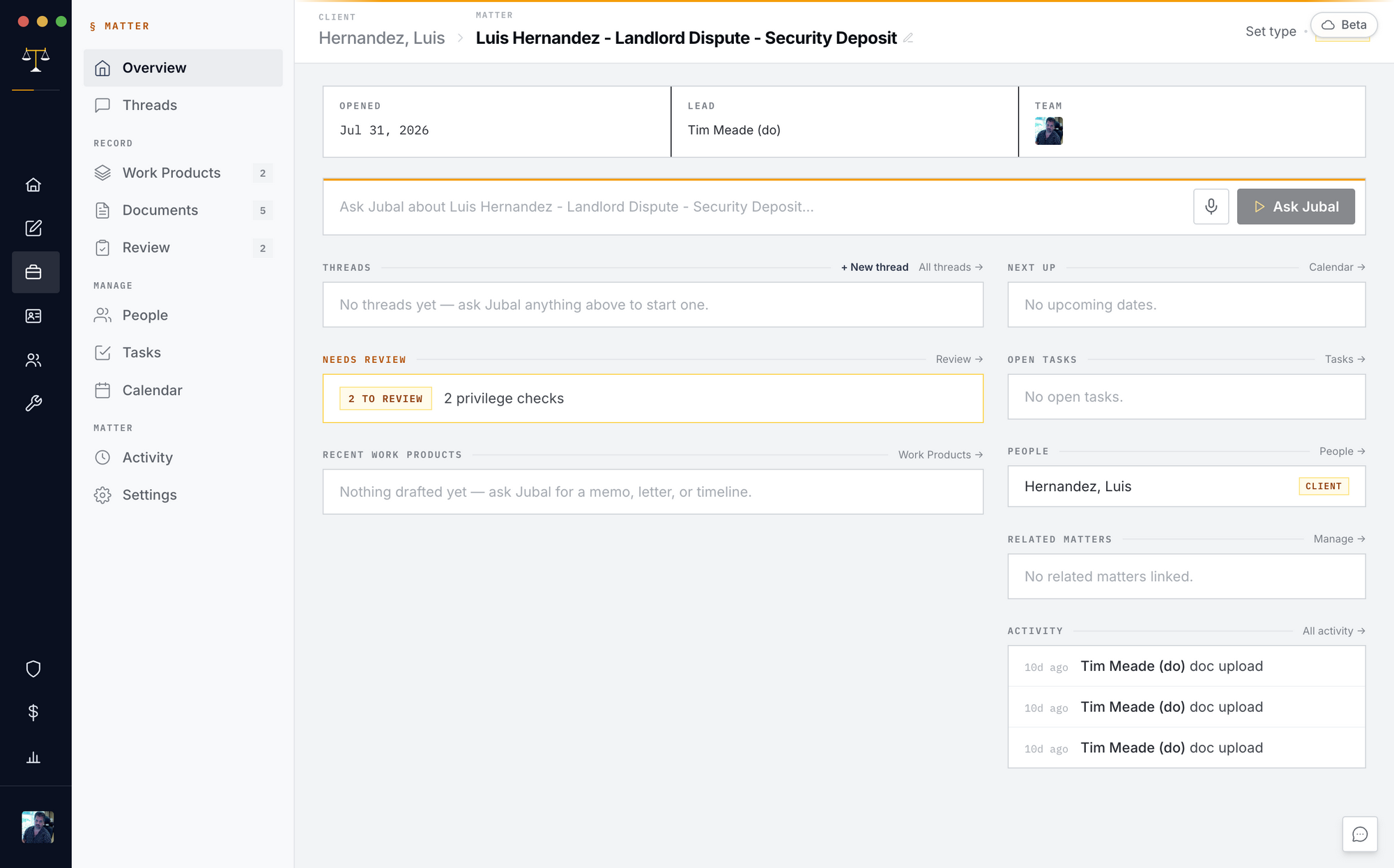
Matters → New matter. Name it, attach the client (or add one in the same flow). Every new matter passes a conflicts check first: client and opposing parties are screened against every other matter in the firm; a name match must be reviewed and a resolution recorded before the matter is created. Enforced on the server — it can't be clicked past.
Import your existing caseload
Sidebar → Tools → Import cases. Point Jubal at the folder on your office drive that holds your cases; it recognizes the structure (client folders containing case folders, or one folder per case), proposes a matter + client for each, and you review the whole mapping in one table before anything is created. Matters are created linked to their drive folders, so they re-sync from day one. Interrupted? Run it again — nothing uploads twice.
The matter Overview
Every matter opens on its case desk: three doors across the top — Files, Drafts, and Needs your review — each with its count, the newest five items, and a link to its tab; your recent Chats below; and Ask Jubal docked at the bottom of the page, three lines, four-fifths wide. The matter's standing record (client, other side, court, opened, lead, fee, limitations, people, schedule, activity) is on the Details tab.
Matter lifecycle
The ⋯ menu in the matter header: Close (done but still writable), Archive (shelved, read-only, reversible from the Matters list), Delete (inaccessible immediately, recoverable for 30 days), and — for owners — Purge now (permanent in Jubal's live systems, for right-to-erasure; encrypted backups expire within 12 months; you type the matter name to confirm). Before a purge you're offered the client-file export: one click zips the entire matter — sources and work product, folders intact — for handover.
Back to the index ↑Asking Jubal in a matter (Chats)
- Start from Ask Jubal at the bottom of the Overview, or Chats → type in the composer at the bottom. The first message starts a new thread, titled from your question.
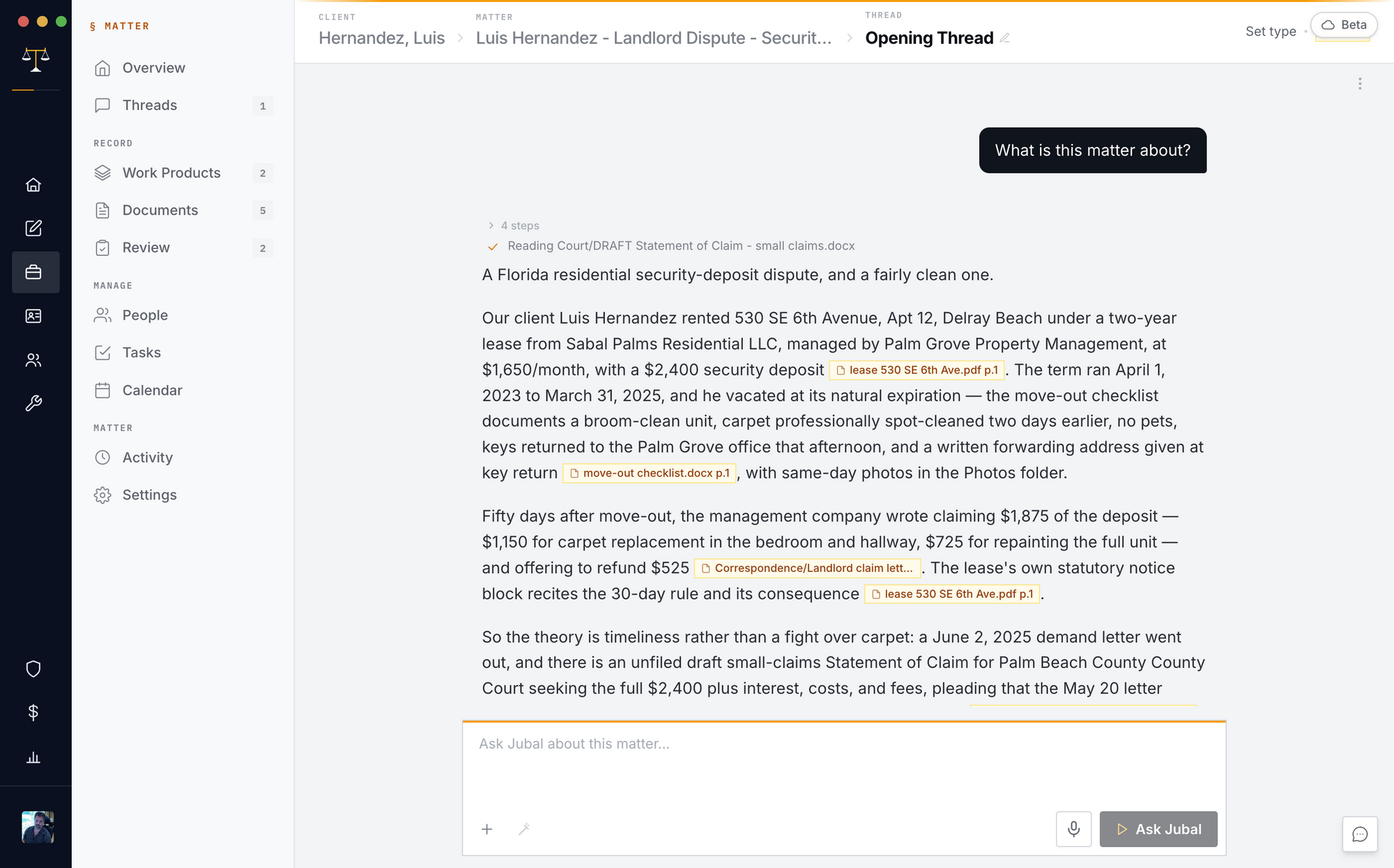
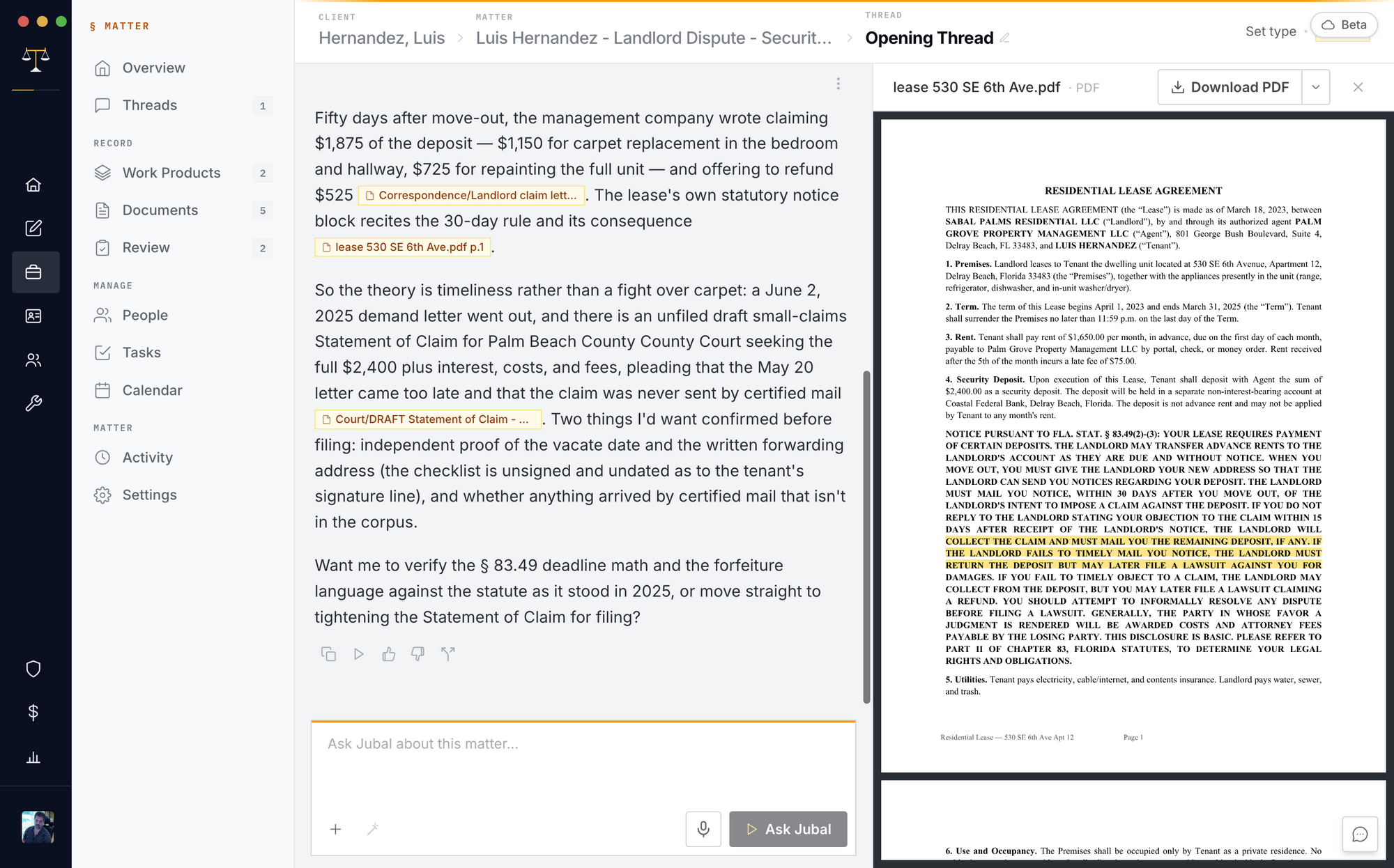
- Citations: answers cite the record as
[document p.N: "quote"]— click one to open the document viewer at that page. If the record doesn't support a claim, Jubal says "it's not in the record" rather than invent.
- Guided questions: when your ask is genuinely ambiguous, Jubal asks a quick multiple-choice question instead of guessing.
- Stop (the small square by Send) halts a running answer. Sending again mid-answer interrupts with your correction.
- Teammates can watch the same thread live; if someone else is driving it, your message queues and sends when their answer lands.
- Attach (the + in the composer) references documents or routes to upload.
- Chats can be renamed, archived (list hygiene — content still informs that thread's future turns), or deleted from the thread header menu.
Documents
Upload
Drag files or whole folders anywhere onto the Documents page. Before a big drop, Jubal shows a pre-upload summary — what's new, what's an exact duplicate (skipped), what can't be processed — and you confirm. Folder structure is kept: the Documents page shows your folders, and Jubal cites by the paths your team knows.
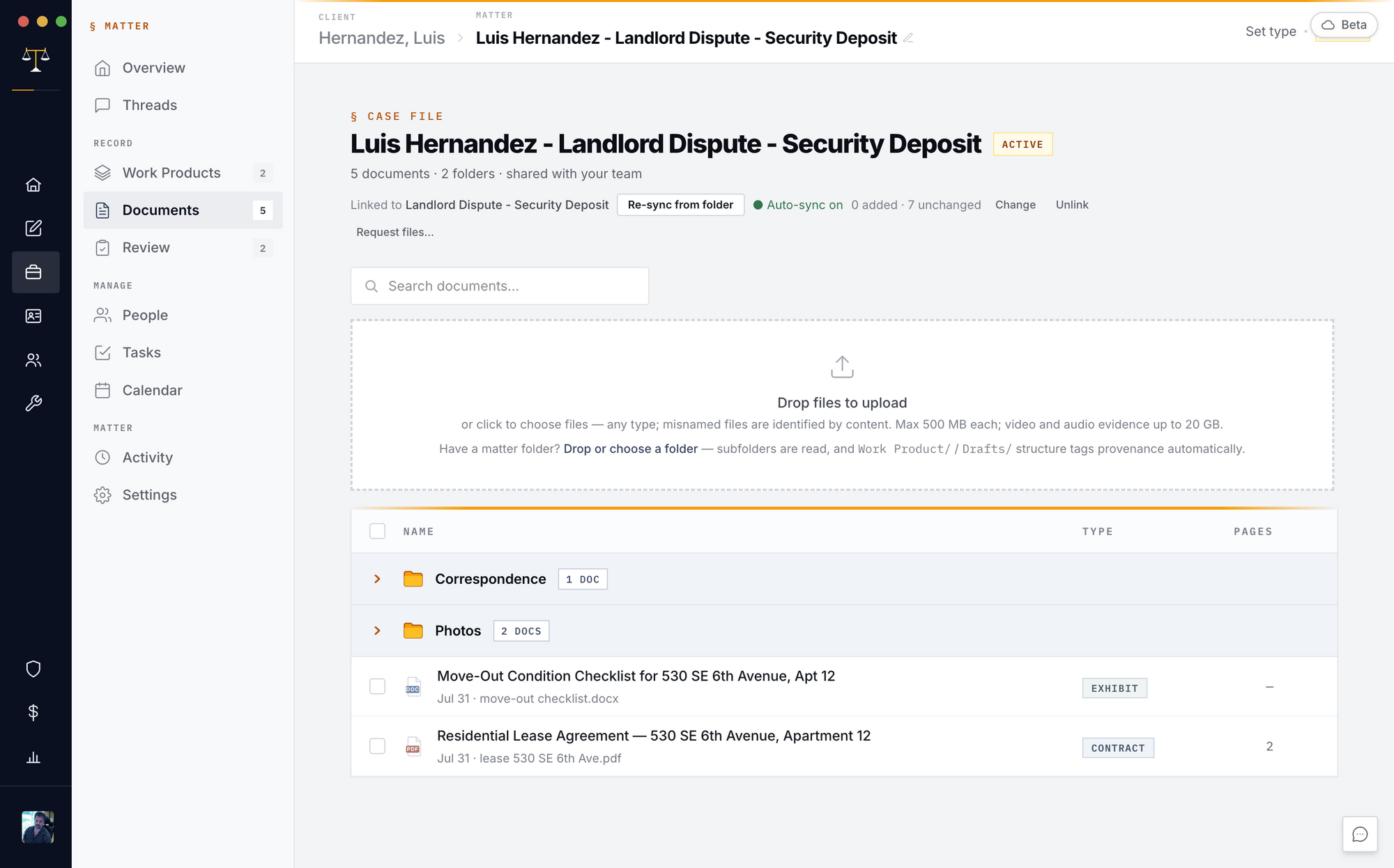
What happens at ingest
Every document is identified by its contents (misnamed files still ingest correctly), summarized into the matter's index, made searchable, and — where the filename is unreadable — given a suggested readable title you can apply, edit, or dismiss (the file itself never changes). Scanned and handwritten pages are read visually; photos get a searchable description; recordings are transcribed (multi-gigabyte bodycam included — oversize media extracts audio locally next time a team desktop opens the matter).
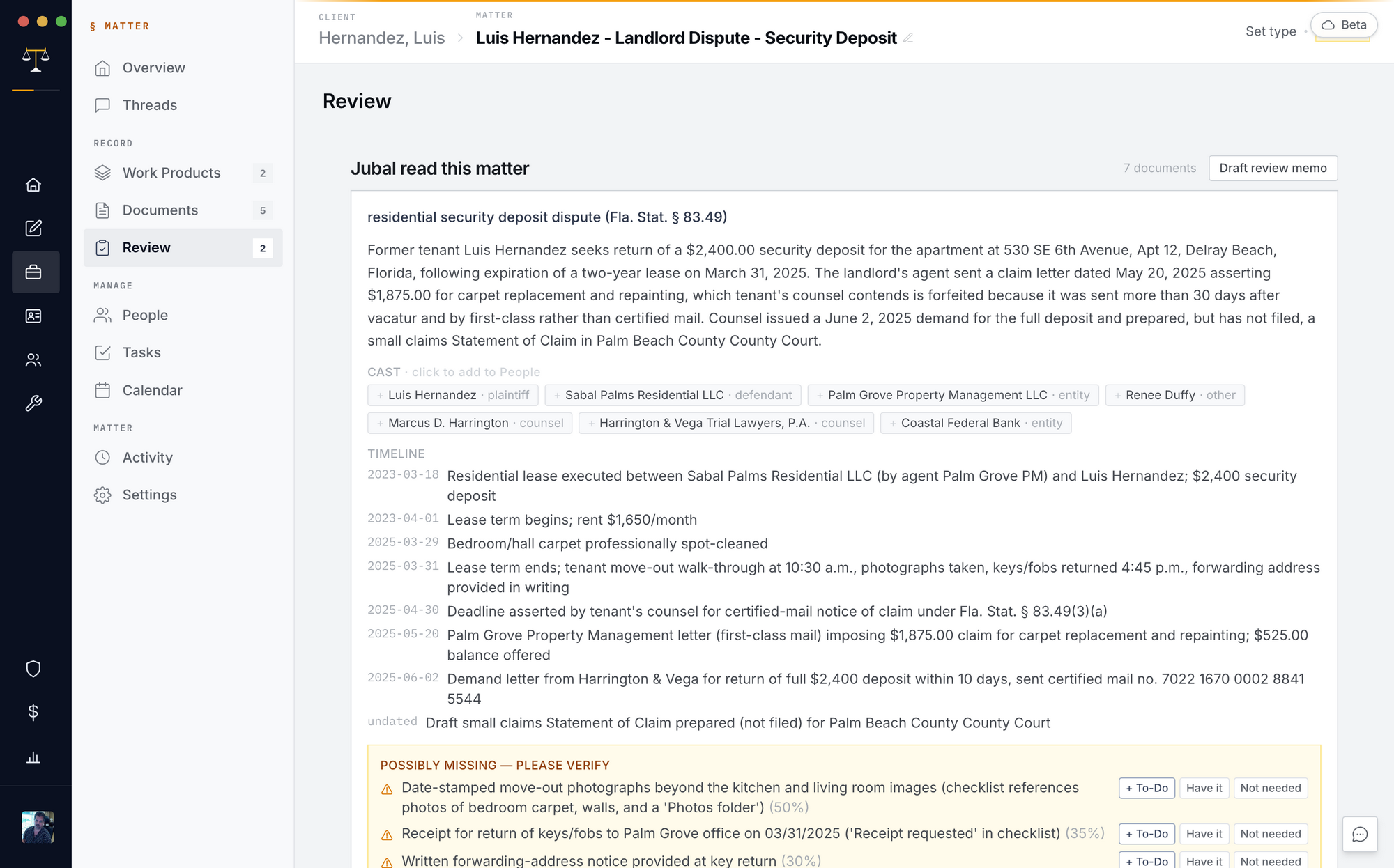
The viewer
Click any document: the side panel shows type, dates, pages, status, your designations and notes; the viewer opens PDFs and Word files with the citation panel, version History (download or restore any version — restores become new versions, the trail is never rewritten), and download.
Keep the matter current from the office drive
Matter → Documents → Re-sync from folder after linking the matter to its drive folder once (the link is per-machine). While the matter is open, one desktop on the team auto-watches the folder every few minutes — the case file stays current without anyone clicking.
Request files from a client
Documents → Request files: enter a name and email; they get a branded secure link to a drag-and-drop page (no account, files to 5 GB). Everything lands in a review queue — nothing enters the matter until an attorney accepts it, stamped with who sent it and when. Revoke the link anytime.
Back to the index ↑Drafts (work product)
Everything Jubal drafts lands on the Drafts page, tagged by type
(memo, letter, motion, chronology, packet…), newest first, and as real
.docx/.pdf/.xlsx files you own — no proprietary editor.
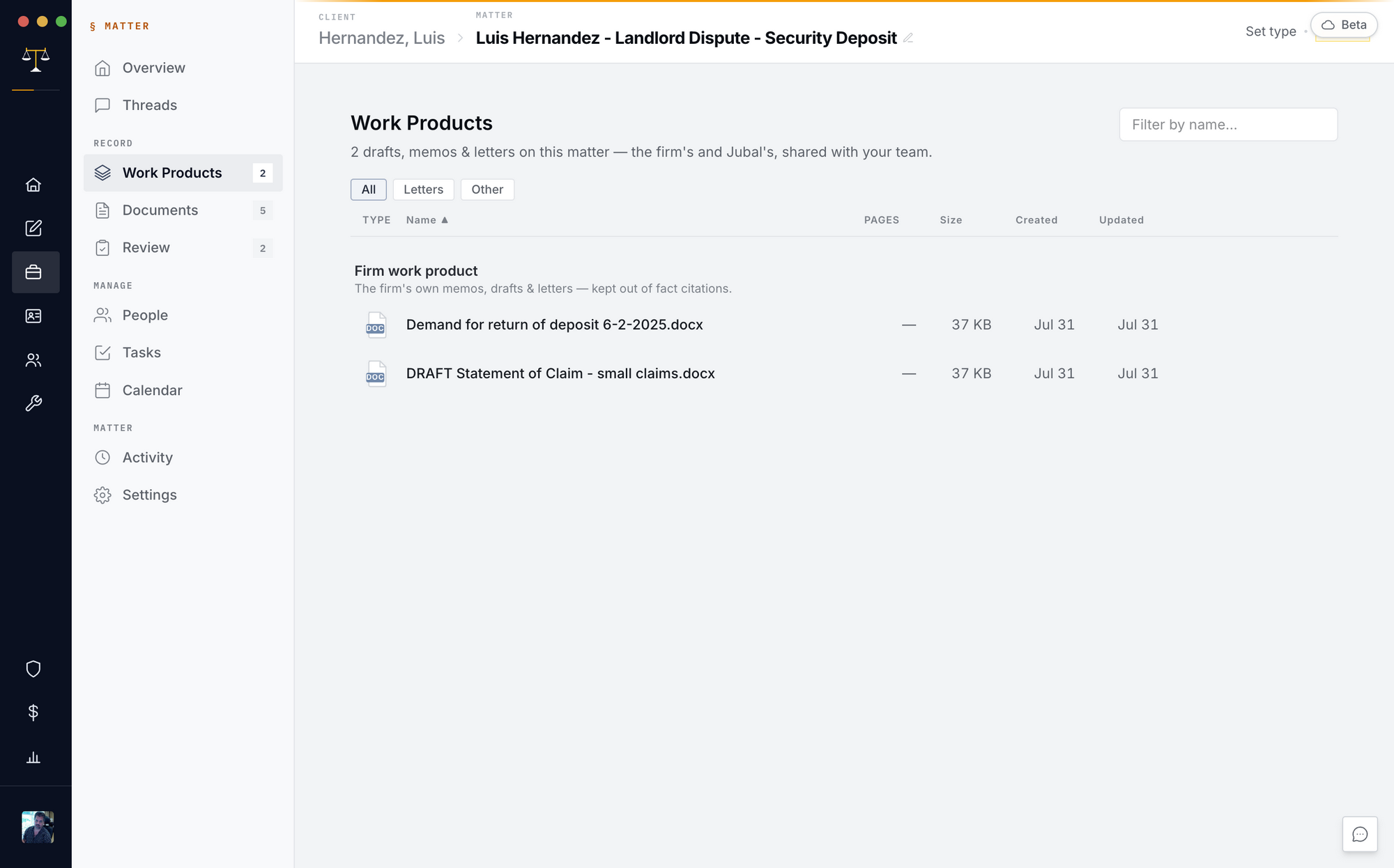
- Edit in Word, bring it back: download, edit, and drop the edited file back on the Drafts page (or just re-sync the linked folder — downloads land in a "From Jubal" folder there and edited copies return on their own). The edit becomes a new numbered version of the same document, and Jubal studies the changes — what it learned lands in the matter's visible memory and improves the next draft.
- Review flags: every deliverable passes a delivery gate — leftover placeholders, unverified citations, completeness gaps are flagged on the document and in the thread. Nothing ships half-finished silently.
- Citations report: drafts with authorities carry a ✓/⚠/✗ citation panel — record cites checked against your documents, legal cites against the primary sources.
The Quick Desk (personal quick work)
Sidebar → Quick Desk. A rail of your private sessions beside a chat pane — no client, no matter, zero intake. Use it for the drafting that has no case: a recommendation letter, a school letter, a quick decline, "summarize this thing someone emailed me."
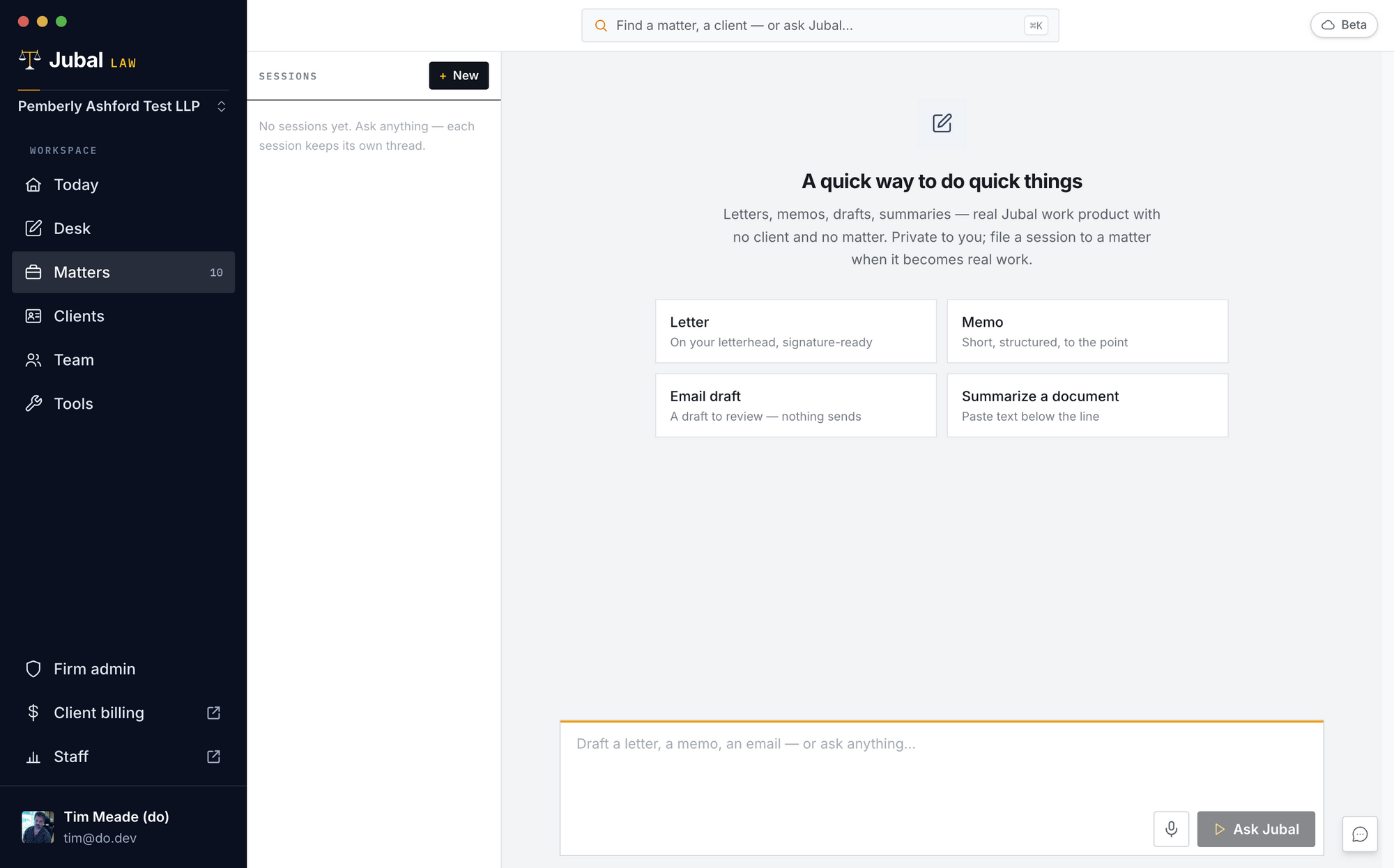
- The four tiles (Letter, Memo, Email draft, Summarize a document) drop an editable scaffold into the composer — fill in the specifics and send.
- Attach a file: drop a document anywhere onto the chat pane — or click the + in the composer — and ask about it. A lease, an insurance policy, something a client emailed: Jubal reads the file right there, with no matter and no upload ceremony. Attached files stay in your private Quick Desk.
- Letters come out on your letterhead, signature-ready (from your contact card + the firm's office address; personal letters use your personal address instead).
- Files Jubal produces are saved to your private Quick Desk automatically and survive machine loss. Everything here is draft-only — nothing is ever sent anywhere by Jubal.
- Move to matter (button in the session header): when quick work turns out to be case work, the whole session — thread and drafts — moves into a matter you pick, becomes team-visible, and its files become real matter documents. The move is recorded in the matter's audit log. Moving does not run a conflicts check — run one from the matter's People page if a new party is involved.
- Quick Desk sessions are private to you — not visible to firm admins. The firm's control is lifecycle: personal data is purged when a member is offboarded.
The Quick Desk cannot answer questions about your matters — it can't see them. Matter questions belong in the matter's threads.
Back to the index ↑Cite-Check (Tools)
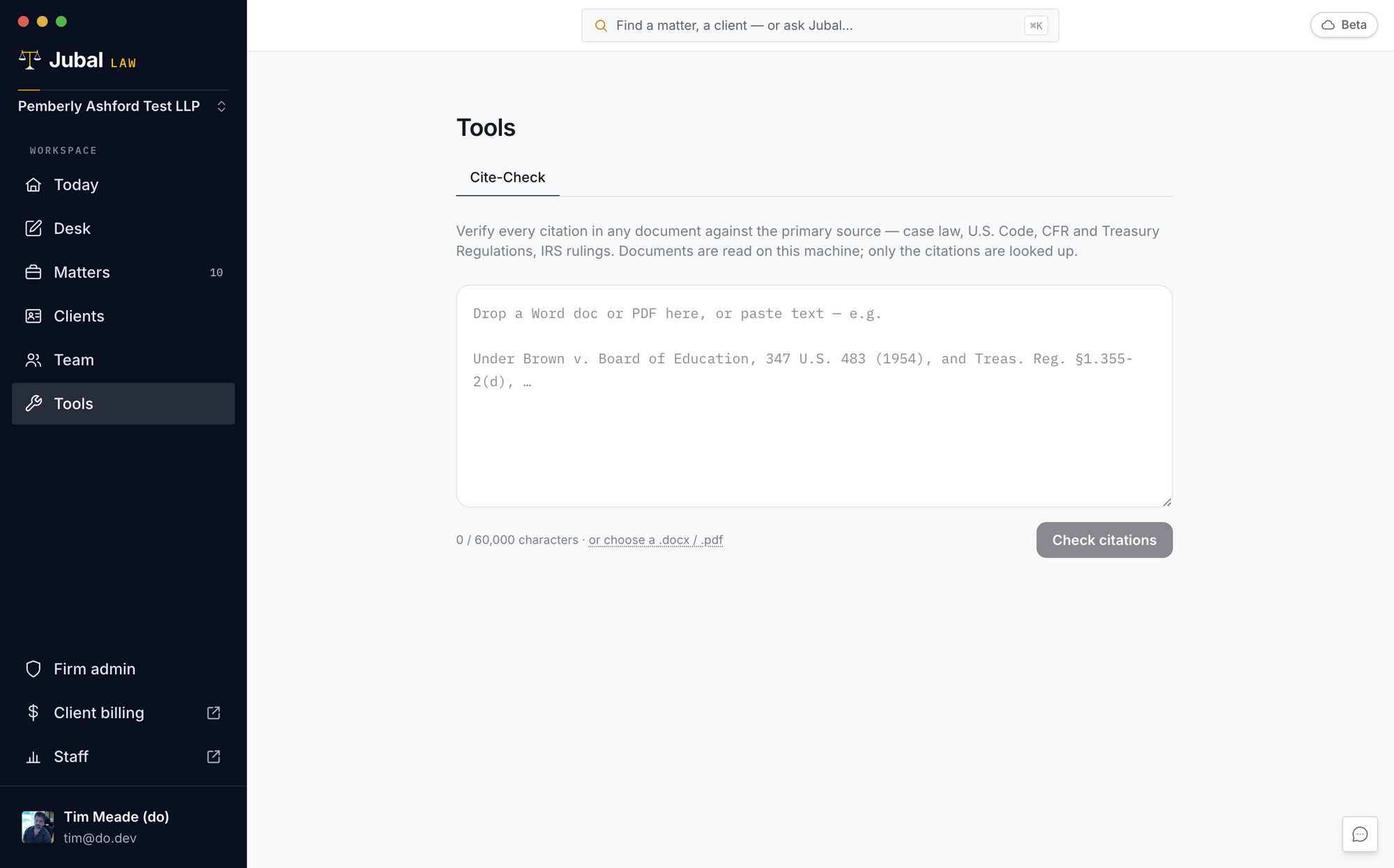
Sidebar → Tools → Cite-Check. Drop any Word doc or PDF — yours or opposing counsel's — or paste text; every citation is verified against the primary sources (case law, U.S. Code, C.F.R., Treasury materials, and a twelve-state statute corpus — CA, CO, CT, DE, FL, IL, NC, NJ, NY, OR, SC, TX), including whether your quotes match the statutory text. Documents are read on your machine; only the citations are looked up. Unlimited on paid plans. (A free public version lives at jubal.law/citecheck.)
Looking things up outside the matter
Jubal can reach outside the matter for three kinds of information — each through the firm's own gateway, never from your machine directly, and every single lookup is logged so the firm can always answer "what left the building?"
- Legal authority (always available): case law (CourtListener), the Federal Register, the U.S. Code and C.F.R., and the multi-state statute corpus. Only short search terms or citations leave — never your documents or drafts. Anything cited from these is tagged with its source.
- Business addresses (always available): ask for a letter to a company
and Jubal fills the recipient block — current mailing address, phone,
website — from a live business directory. Only the business name and city
are sent; never why you're asking. No confident match → a visible
[ADDRESS NEEDED]placeholder, never a guessed address. - The public web (only when you say so): tell Jubal to "look it up
online" and it can search and read public pages. Searches go through one
contracted provider via the firm's gateway; any page it reads is screened
in isolation before a word of it reaches your matter; web facts are
marked
[web: <address>]and are never treated as legal authority. Jubal will not wander the internet on its own, and it never puts case facts into a search box you didn't ask for. For fact-finding you review and keep, use the Search tab (below).
What never happens: your documents leaving in a query, silent lookups (everything is visible in the thread's step log and the firm's audit trail), or an invented address or citation when a lookup comes up empty.
Web Search (the Search tab)
For fact-finding on the public web (a company's lawsuits, news about an incident, a property's code violations, federal court dockets) every matter has a Search tab. Your firm admin switches Web Search on in Firm admin → General; any matter can opt out in Matter settings.
- Search: type what you want found in the bar at the top ("code violations at Oakwood Apartments, Boca Raton, since 2022") and choose where to look: the web, public records (city and county open data; name the place), or court dockets. Jubal turns your words, and only your words, into a few searches. They show as tags above the results and light up as each one runs. Nothing from the matter's files is ever sent.
- Names that reveal who you represent: a search that names your client, your firm or its people asks "Send this search anyway?" first, and your answer is recorded in the search's log. Case and docket numbers are never sent.
- Review: click a result and a copy of the page slides in beside the list, like opening a document. That copy is captured and saved (PDF, text, screenshot, and a fingerprint of each), so it proves what the page said and when. Accept files it in Files → Web as an ordinary file that Jubal can read and cite. Reject moves it to the search's Rejected list.
- Refine or add: under the tags, Refine ("more recent", "only court records") asks for more searches for the same request; Add an exact search runs your wording as typed. Remove a tag to hide its results.
- How Jubal uses web files: pages in Files → Web are third-party content. Jubal quotes them with attribution ("according to the NTSB's report…"), never states them as established fact, never treats them as legal authority, and never follows instructions written in them.
- In chats: a chat never searches the web itself. When a search would help, Jubal leaves a suggestion on the Search tab; you edit it, run it or dismiss it.
- Exhibits: open a filed web page and press Capture certificate to draft a certificate of web capture (FRE 902(14)) in Drafts for the firm to sign. The evidence-packet skill puts it behind the exhibit.
- Monitoring (optional): re-run a search daily, weekly or monthly. New pages arrive marked New. Monitoring pauses if the allowance runs out, Web Search is switched off, or the person who set it up leaves the firm.
- The record: Export log to Drafts saves a CSV of every search sent, every refusal and "send anyway", every capture with its fingerprint, and every accept or reject.
Voice / dictation
- Every Ask surface has a mic button beside "Ask Jubal" — click to start, click to stop. While live, the input glows gold.
- Hold-to-talk anywhere: hold the dictation shortcut and speak into whatever field has focus; release to stop. A speaking panel shows your words live. With nothing focused, speak anyway — release opens the Ask box with your words ready.
- Configure the shortcut and devices in Settings → Voice ("Dictation shortcut").
- In matters, dictation is primed with the case's party names — the words generic dictation mangles.
Calendar, tasks, deadlines
- Matter → Calendar: month + agenda views of SOL clocks, filing deadlines, hearings, depositions. Jubal auto-seeds the SOL clock from the incident date where supported (rule cited) and can propose deadlines in chat — always added unconfirmed, each with the controlling rule, for your sign-off.
- A daily email digest surfaces what's overdue and what's due in the next week.
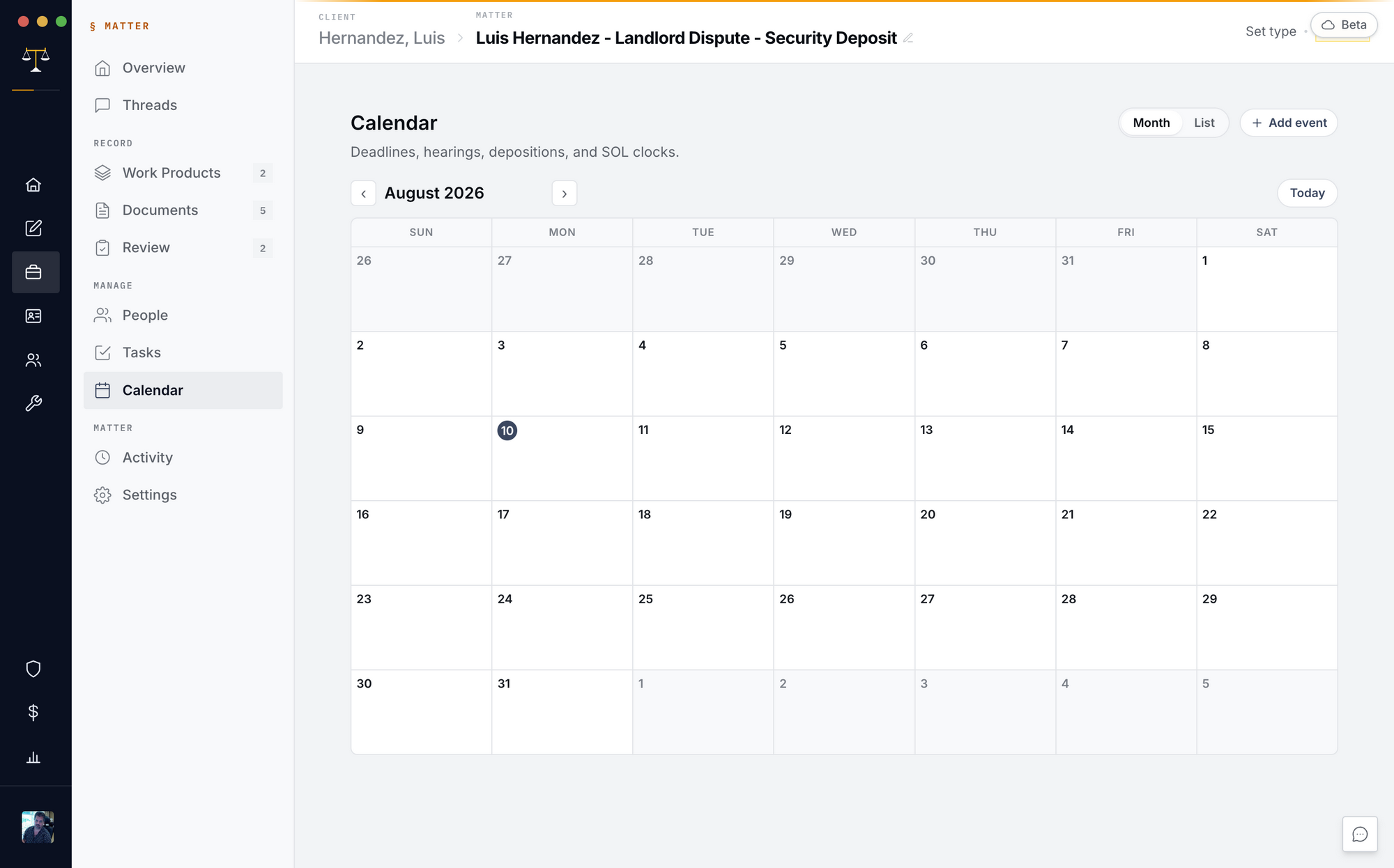
- Matter → Tasks for open items; Today rolls tasks and deadlines up across matters.
Clients and people
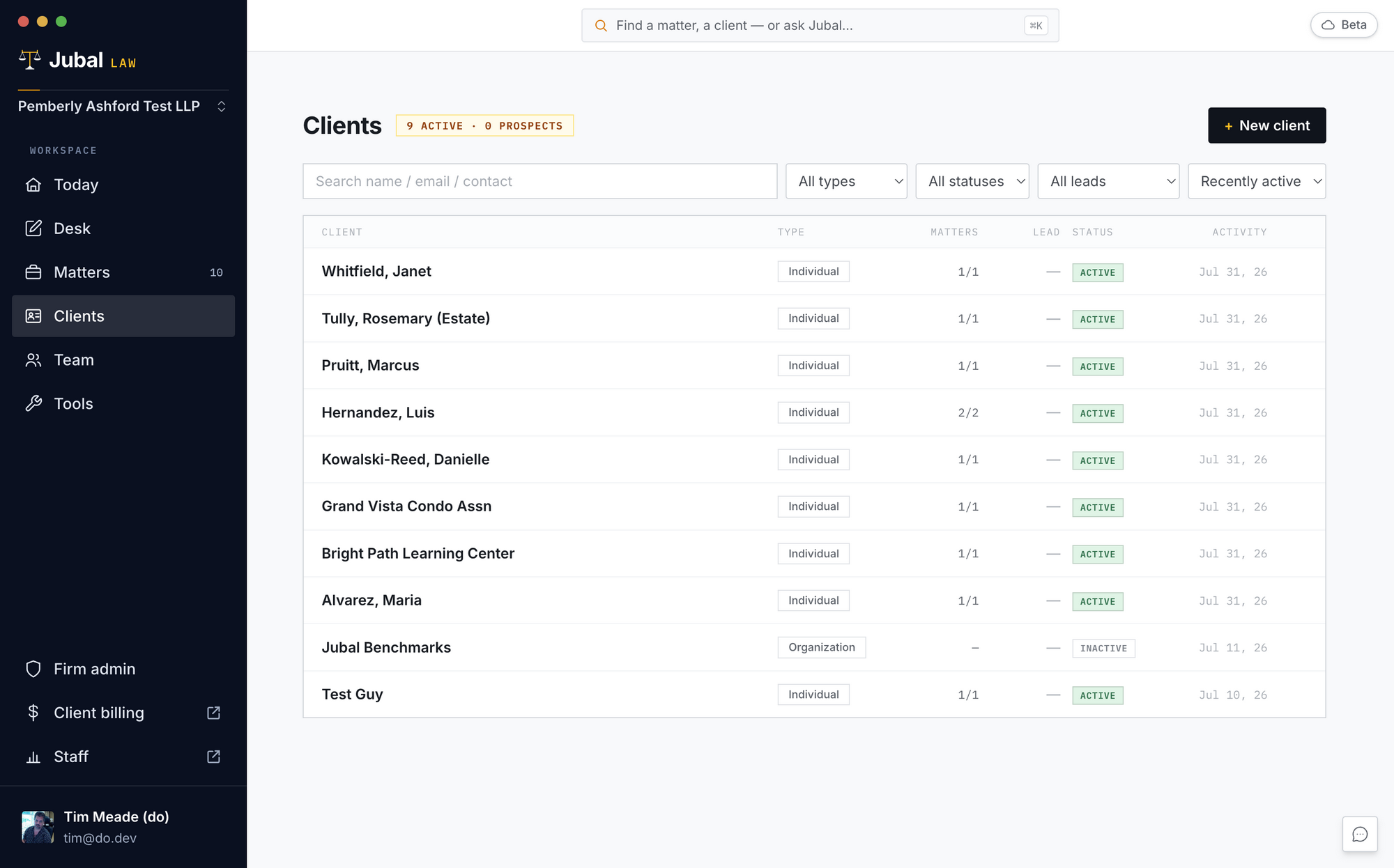
- Sidebar → Clients: the firm's client book — individuals and organizations, matter counts, lead attorney, status, last activity. Add client is a guided flow that can open their first matter in the same step.
- Matter → People: the parties (client, opposing, counsel, judge…), the matter team, and guest access. Party details open in a slide-over.
Team, roles, and sharing
- Invite teammates: Team (or the Firm page) → invite by email, choosing role and seat in the same step. The invite email is matched to their sign-in address — they accept inside the app on first sign-in.
- Seats: Free seats (view only) cost nothing for the whole firm (see everything, run nothing). Working seats pick a plan — Pro or Max — each with a monthly work allowance, managed per seat. Current seat prices are on jubal.law/pricing (and in Firm → Billing inside the app); this guide never quotes a figure, so it can't go stale.
- Web review: the full matter — documents, work product, live threads, calendar — opens at jubal.law in any browser. Drafting runs in the desktop app.
- Outside counsel (guests): invite co-counsel or an expert to a single matter by email — no seat, no install, no firm membership. View-only or contribute (add documents); revocable anytime; every step audit-logged. Guests watch threads live but never drive Jubal.
- Matter pools: group related matters so they share one record — each matter's Related page lists the family, and Jubal can pull from any of them while working in one. Cross-client pools require a recorded conflict review first.
Firm administration and billing
One Firm page (desktop Team screen or jubal.law/firm — same screens) runs people, join requests, usage, client billing, invoices, offices, and settings. One designated billing owner controls every dollar.
- Start free: a new firm gets the whole workspace — matters, uploads, organization — with no card. AI stays off until the billing owner picks a plan; the moment someone reaches for it they're pointed down the right path.
- Usage: each seat's plan includes a monthly allowance; add usage anytime (rolls over 12 months). Auto usage is on from the firm's first bill: when a seat runs low it refills from the card on file, under a monthly ceiling per seat that the billing owner can change, with an email on every refill. The billing owner can turn it off; with it off, AI work on a seat stops when its usage runs out.
- Cost per matter: every matter shows its AI cost this month, broken down by activity; the billing page rolls costs up matter by matter and client by client on the firm's own billing cycle, with one-click per-client statements (print-ready or emailed).
- Checkout and card management are the only browser moments (Stripe); the app picks up the result automatically.
Settings
Settings (from the sidebar account menu) — tabs: Account (contact card, avatar, mailing address), Profile (personal setup interview + your working profile/playbook), Firm (firm interview, playbook — admins), Appearance (text size), Voice (dictation shortcut + devices), Notifications, Security (active sessions with one-click sign-out per device or everywhere).
Deleting your account or your firm. Sign in at jubal.law and open Settings (or go straight to jubal.law/account). Anyone can delete their own account there; a firm's owner can delete the whole firm. Both ask you to confirm twice (and to sign in again if it has been a while), and neither can be undone.
Back to the index ↑Privacy, security, feedback
- Documents are encrypted, access is matter-scoped, privilege-relevant actions are audit-logged. Jubal never trains a model on client work, never sells it, and never shares it with other firms — commitments written into the Customer Terms every firm accepts.
- What Jubal learns inside a matter never leaves it; guests never see the firm's playbook.
- Feedback: rate any answer 👍/👎, or use the floating report button on any screen — optionally with a screenshot of the app window only, previewed before sending. It goes straight to the Jubal team.
Keyboard shortcuts
| Keys | Does |
|---|---|
| ⌘K / Ctrl+K | Command palette — jump to a matter/client, or ask |
| Hold dictation shortcut (set in Settings → Voice) | Push-to-talk dictation anywhere |
| ⌘+ / ⌘− | Text size |
| Enter / Shift+Enter | Send / new line in composers |
| Esc | Close dialogs; undo an Enhance in the composer |
What Jubal does NOT do (honest edges)
- No cross-matter answers yet. "What's due this week across my cases?" isn't answerable by a thread or the Quick Desk today — Today's dashboard and the Calendar digest are the current answer. A true cross-matter agent is on the roadmap.
- The Quick Desk can't see matters, and matter threads can't see other matters (unless pooled).
- Nothing is ever sent by Jubal — emails, filings, letters are drafts for you to send.
- AI-proposed dates are never final — every one arrives unconfirmed for attorney sign-off.
- It won't invent authority — unsupported citations become visible
[AUTHORITY NEEDED]placeholders, never fabricated cites. - It won't browse the internet on its own. Web lookups run only when you direct one (§10), through the firm's gateway, logged — and web content is never used as legal authority.