Welcome: your first sign-in
Four steps get you signed in, put Jubal on your computer, and show you where everything is.
Sign in with your work email
Go to jubal.law and choose Sign in. Enter your work email, and Jubal emails you a one-time code. Enter it to sign in. No password is needed.
If someone at your firm invited you, use the address the invitation went to. The invitation is waiting when you sign in.
If the code is not in your inbox within a minute, check spam, then add Jubal to your safe senders. Your colleagues' invitations come from the same place.
Jubal can offer to remember this computer with a passkey, so next time you sign in with Touch ID or Windows Hello.
Finish the short setup
The first time, a few short screens follow: Your account (your name), then, if you are starting a firm, Your firm and Invite your team. Along the way you accept the Customer Terms, which carry Jubal's commitments about your data.
If your email matches a firm already on Jubal, you can request to join instead. You see nothing of the firm until an owner approves you.
Setting up the firm itself is guide 2, Set up your firm.
Get the desktop app
Jubal works in any browser, and we recommend the desktop app for Mac and Windows for everyone who works matters every day. It works on the same matters, and:
- It works on your office drive. Link a matter to its folder once and new files come in on their own.
- You drop whole folders in from Finder or Explorer, folder structure and all.
- Each attorney's Jubal works on their own computer, over matters the firm shares.
- It keeps itself current. Updates download in the background.
The last setup screen, Get the app, has the download for your computer. You can also get it from the Help page. Open it and choose Sign in: it opens your browser to finish, then brings you back.
Install it for everyone who drafts. Teammates sign in with their own email and see the same matters you do.
When an update is ready, the app asks to relaunch. It takes a few seconds and your work is saved.
Find your way around
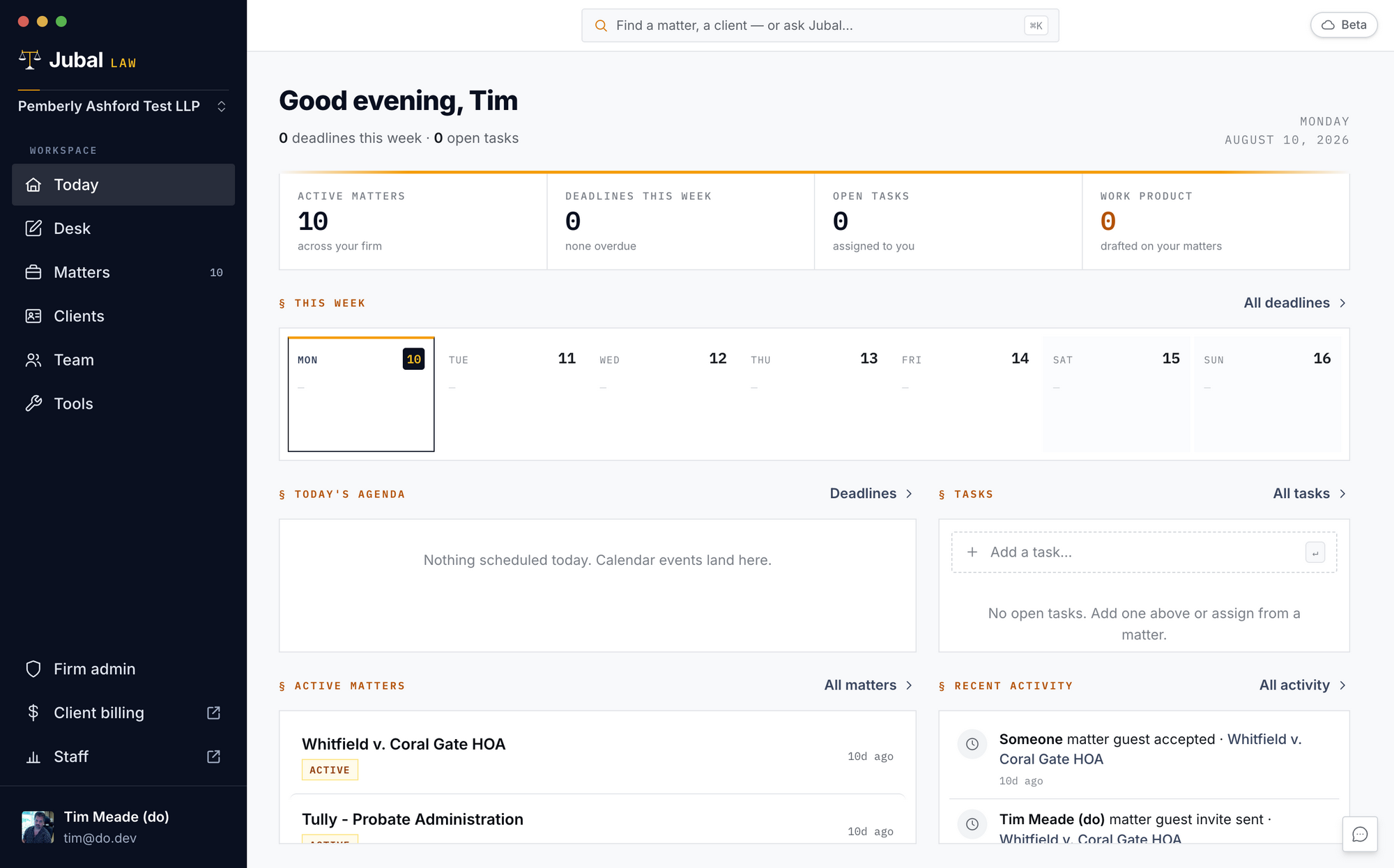
The sidebar on the left has six places: Today, Quick Desk, Clients, Matters, Team and Tools. Your account menu (Settings, sign out) is at the bottom.
- Today is your dashboard: deadlines this week, overdue items, open tasks and recent work across your matters.
- Quick Desk is your private place for work with no client or matter: a letter, a memo, a summary.
- ⌘K (Ctrl+K on Windows) opens the command palette anywhere: type a matter or client to jump to it, or type a question.
You are done when…
You can sign in with your work email.
The desktop app is installed and signed in.
You know where Today, Matters and the Quick Desk are.