The court decides the form
Set the matter's court on its Settings tab, under Forum. Filings Jubal drafts for the matter then follow that court's caption, title, margins, typeface, spacing, page numbers and certificates. Every filing is checked against the court's rules before you see it.
- A form Jubal doesn't have is refused, not forced. If a paper needs a caption form Jubal doesn't know for that court (some juvenile, probate or guardianship papers, for example), it tells you and does not squeeze the case into a plaintiff-versus-defendant form.
- Where the rules aren't complete. If Jubal's rules for a court are incomplete, the filing opens with a notice of what is missing and what Jubal used in its place. Confirm those before you file. If you know the rule, send it to us from the notice.
New papers follow the paper you already filed
Upload a paper your firm has filed in the case. Jubal looks at the most recent one and builds the next paper the same way: the caption line for line, the paper's title in the footer, your signature block in the order you print it, your own certificate of service sentence, the typeface and spacing. Where you e-signed the earlier paper, the new one carries the same "/s/" signature block. You still review and file it.
Confirm the matter's filing form once
After Jubal reads a filed paper, it shows you the caption, signature block, footer and certificate of service as filed and asks once: use this form for papers in this matter? Say yes and every new court paper in the matter is built from it and checked against it before you see it.
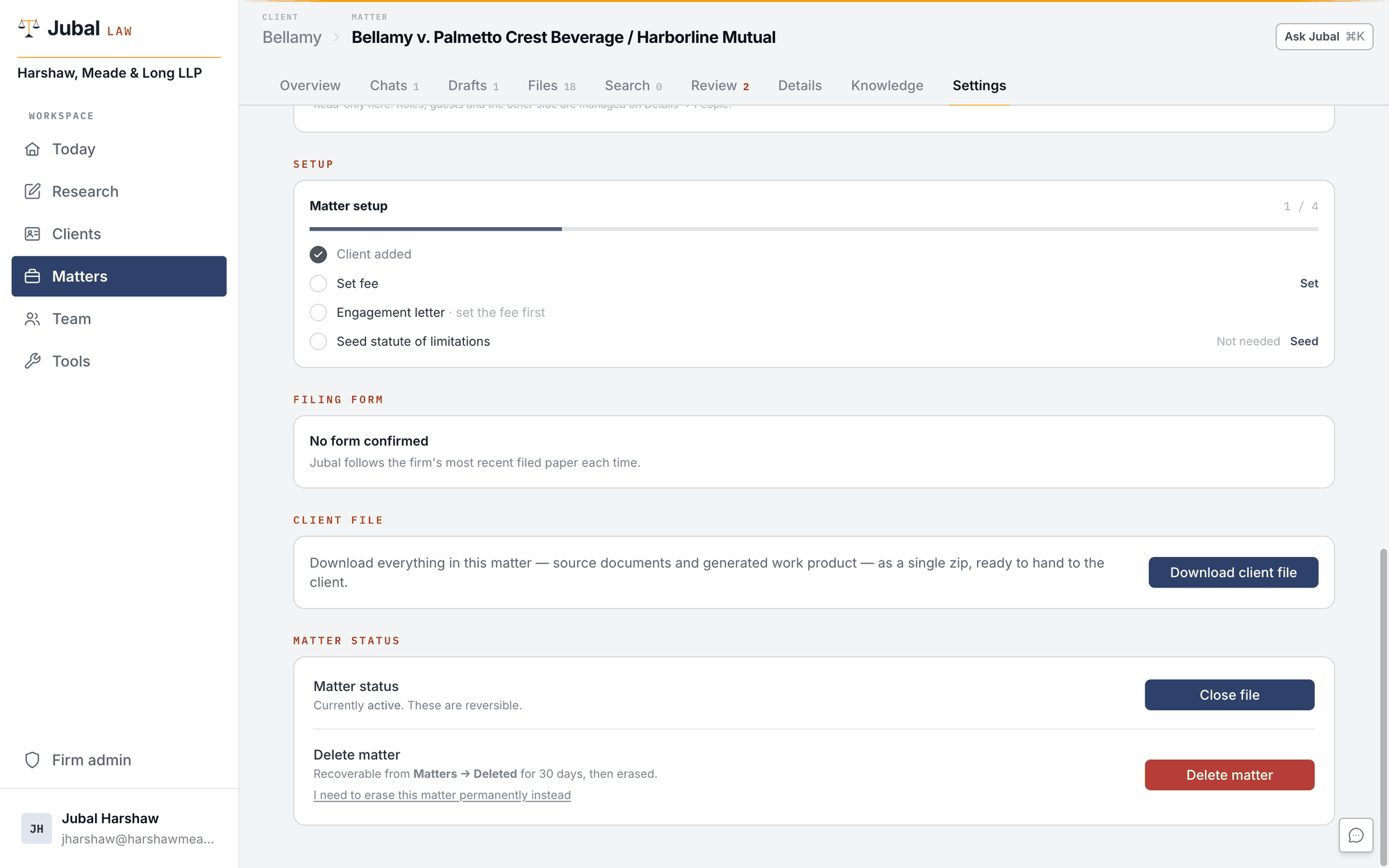
The matter's Settings tab shows the state under Filing form. With no form confirmed, Jubal follows the firm's most recent filed paper each time. You can stop following a form at any time. The court's rules still come first.
Details saved from a paper you filed
When Jubal reads the signature block of a filed paper, it offers what it found:
- to you: your name as signed, your bar number and your service email;
- to a firm admin: the firm's address, telephone and fax.
You tick what to save. Nothing is saved unseen, and a value that would replace one already on file starts unticked. If a later paper carries a detail not yet on file, Jubal asks again for that one.
Your bar admissions are under Settings › My Profile. A filing is signed with the number for its court's state.
The font, when the court allows a choice
Firm admin › Letterhead › Court filings sets the font Jubal files in where a court's rule allows more than one. Where a court doesn't allow that font, its own rule wins. The certificate of compliance always names the font the filing actually uses, and an attorney can ask for a different allowed font on one filing.
Editing a filing
A filing opens in the editor as the court's own page. A change that would break the court's rules is not saved, and the editor says why. A filing that comes back out of format, for example after an edit in Word, is still kept as the current version, marked as not to the court's rules, with Conform to put it back in the court's format.
Download for filing
Download as DOCX for Word. The arrow beside it has Download as PDF and Download as PDF/A, the archival PDF many e-filing portals ask for. If the court takes papers only as Word, Jubal tells you before you download the PDF.
Jubal never files anything. The paper is yours to sign and file.