Create a matter
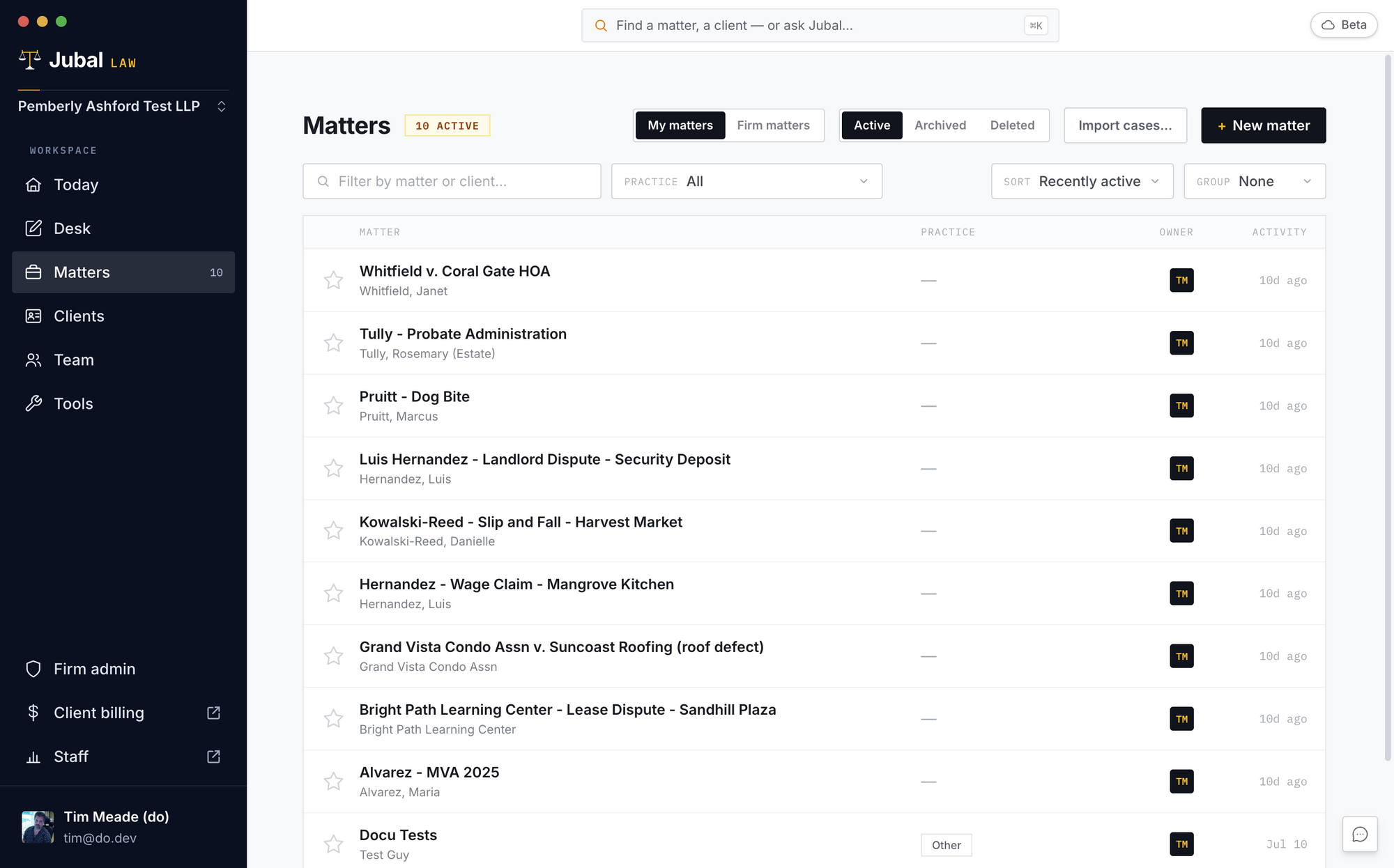
Matters → New matter. Name it, attach the client (or add one in the same flow). Every new matter passes a conflicts check first: client and opposing parties are screened against every other matter in the firm; a name match must be reviewed and a resolution recorded before the matter is created. Enforced on the server — it can't be clicked past.
Import your existing caseload
Sidebar → Tools → Import cases. Point Jubal at the folder on your office drive that holds your cases; it recognizes the structure (client folders containing case folders, or one folder per case), proposes a matter + client for each, and you review the whole mapping in one table before anything is created. Matters are created linked to their drive folders, so they re-sync from day one. Interrupted? Run it again — nothing uploads twice.
The matter Overview
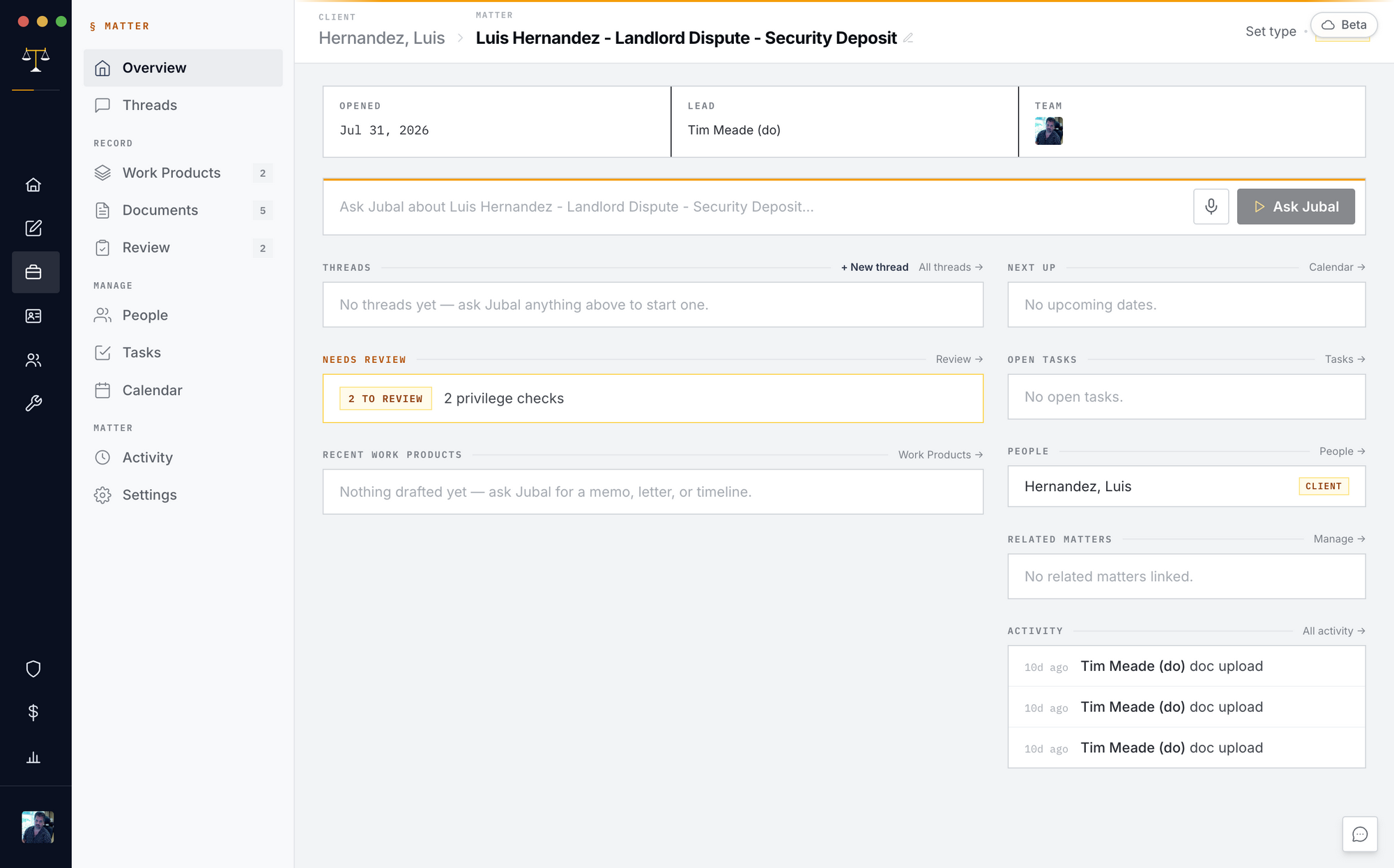
Every matter opens on its case desk: three doors across the top — Files, Drafts, and Needs your review — each with its count, the newest five items, and a link to its tab; your recent Chats below; and Ask Jubal docked at the bottom of the page, three lines, four-fifths wide. The matter's standing record (client, other side, court, opened, lead, fee, limitations, people, schedule, activity) is on the Details tab.
Matter lifecycle
The ⋯ menu in the matter header: Close (done but still writable), Archive (shelved, read-only, reversible from the Matters list), Delete (inaccessible immediately, recoverable for 30 days), and — for owners — Purge now (permanent in Jubal's live systems, for right-to-erasure; encrypted backups expire within 12 months; you type the matter name to confirm). Before a purge you're offered the client-file export: one click zips the entire matter — sources and work product, folders intact — for handover.